By MineUtils
Account
How to change your Minecraft Name (Java & Bedrock)
Learn how to change your Minecraft username for both Java and Bedrock Edition. Follow this simple guide to update your profile name or Xbox Gamertag on the official site in just a few minutes.
Maybe you picked a cringe username years ago or you just want something fresh for your new skin. Whatever the reason, changing your name in Minecraft is actually pretty simple. You don’t have to buy a new account; you just need to know where to look in your account settings.
Keep in mind that for Java Edition, you can only change your name once every 30 days. Make sure you double-check for typos before you hit save.
Here is how you can do it for both versions of the game.
How to Change Your Java Edition Name
Since Java Edition is tied to your Microsoft account, everything happens on the official Minecraft website.
- Go to Minecraft.net and log in with your Microsoft account details.
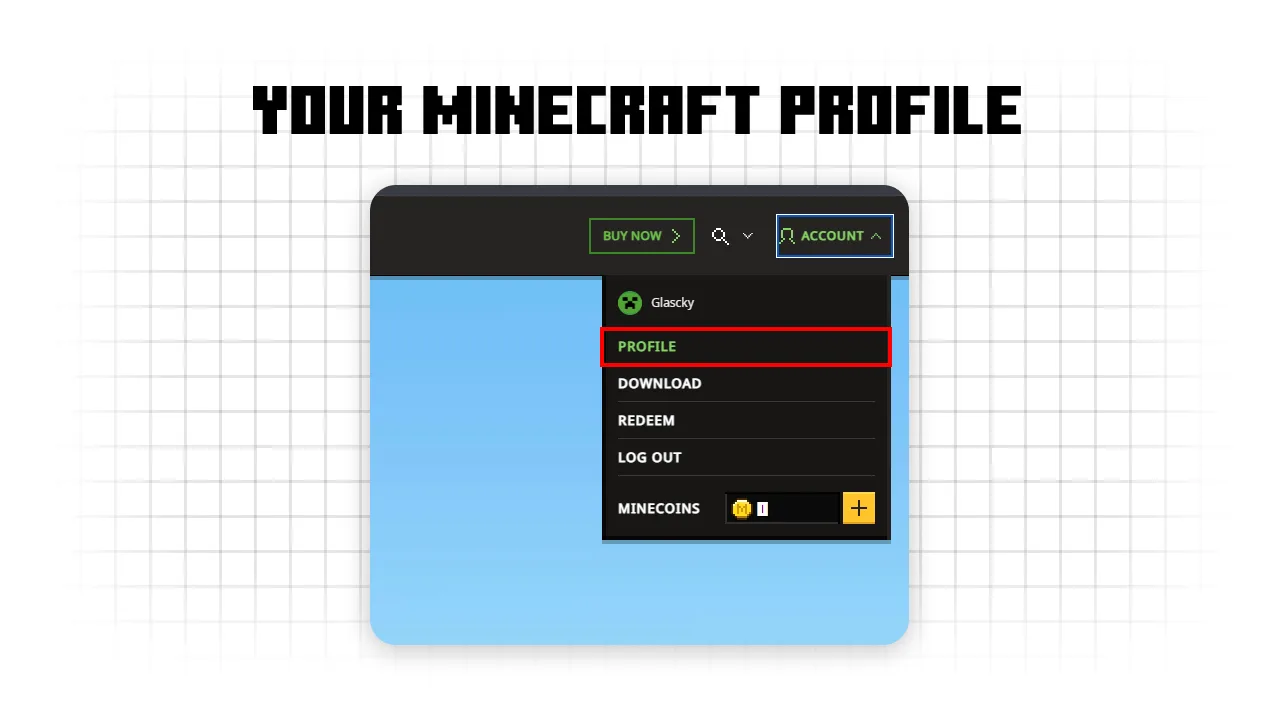
- Once you are in your profile dashboard, look for the My Games section.
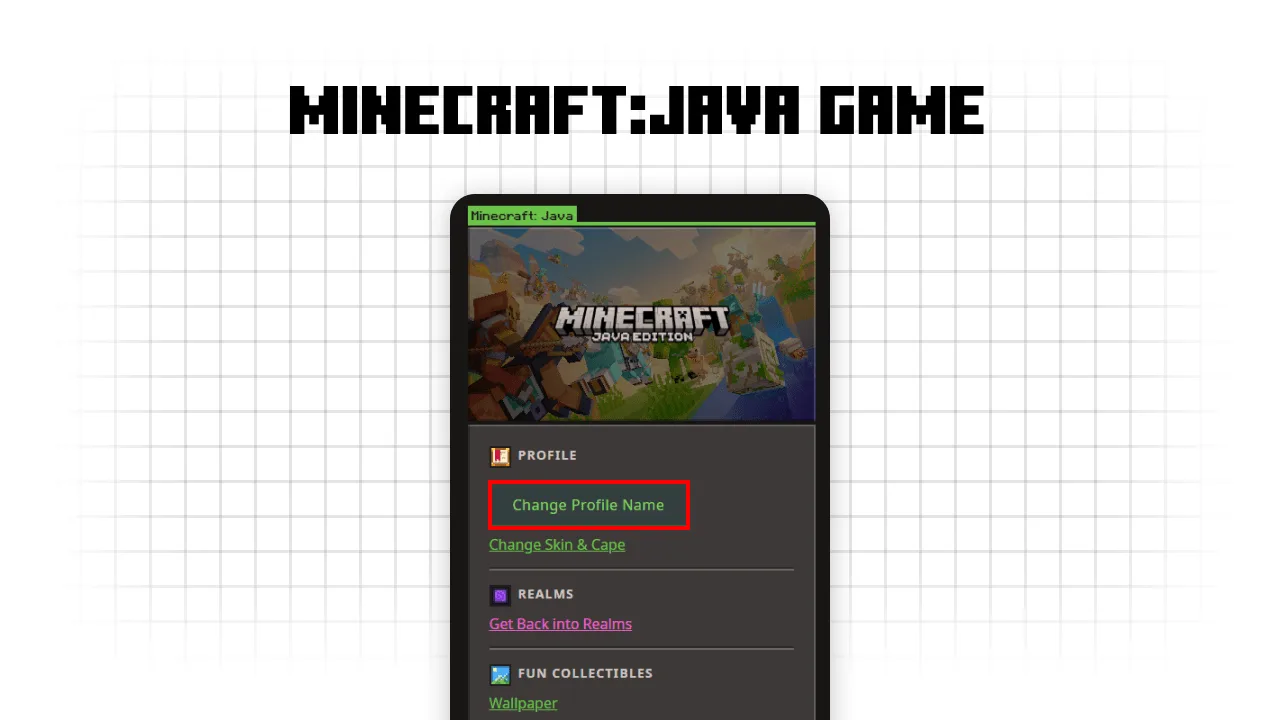
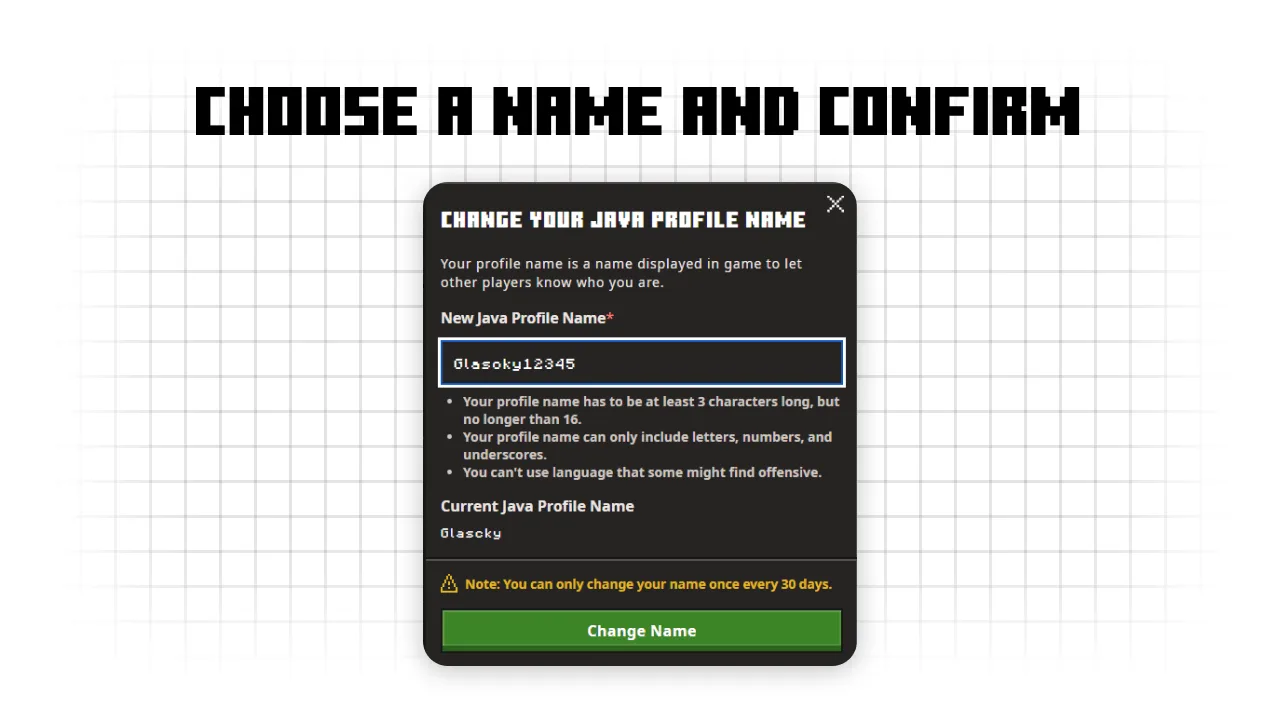
- Find Minecraft: Java Edition and click on the Change Profile Name option.
- Type in the new name you want to use. The site will tell you if the name is already taken or if it is available.
- Confirm the change.
Next time you open the launcher, your new name should be there. If it still shows the old one, just log out and log back in.
How to Change Your Bedrock Edition Name
Bedrock Edition—the version on consoles, mobile and Windows—uses your Xbox Gamertag. Changing it is a little different because it affects your name across Xbox services.
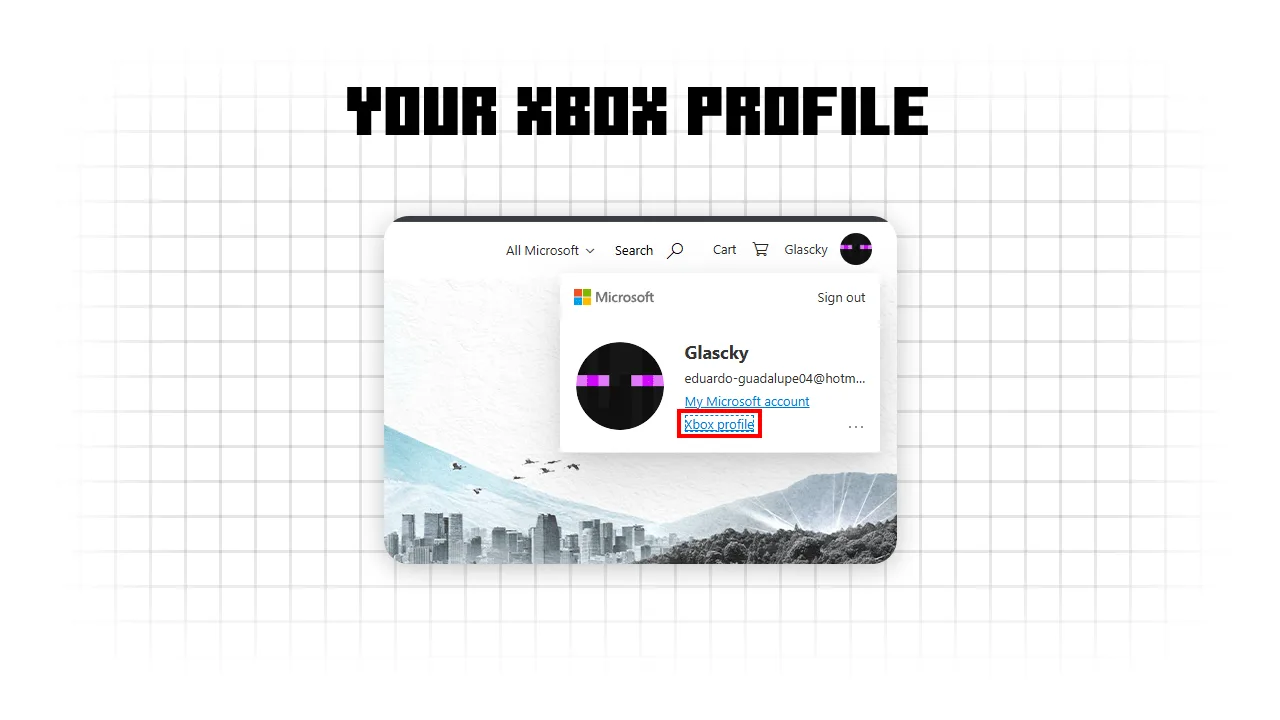
- Go to the Xbox website and sign in with the account you use for Minecraft.
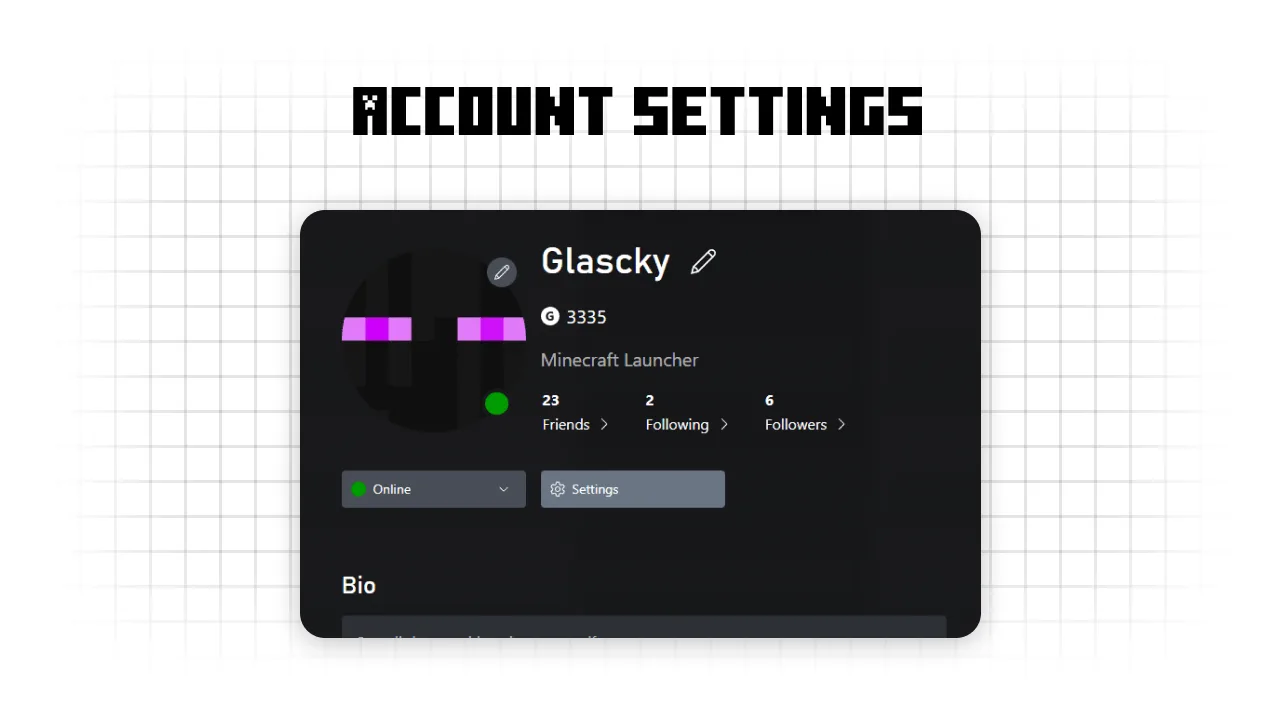
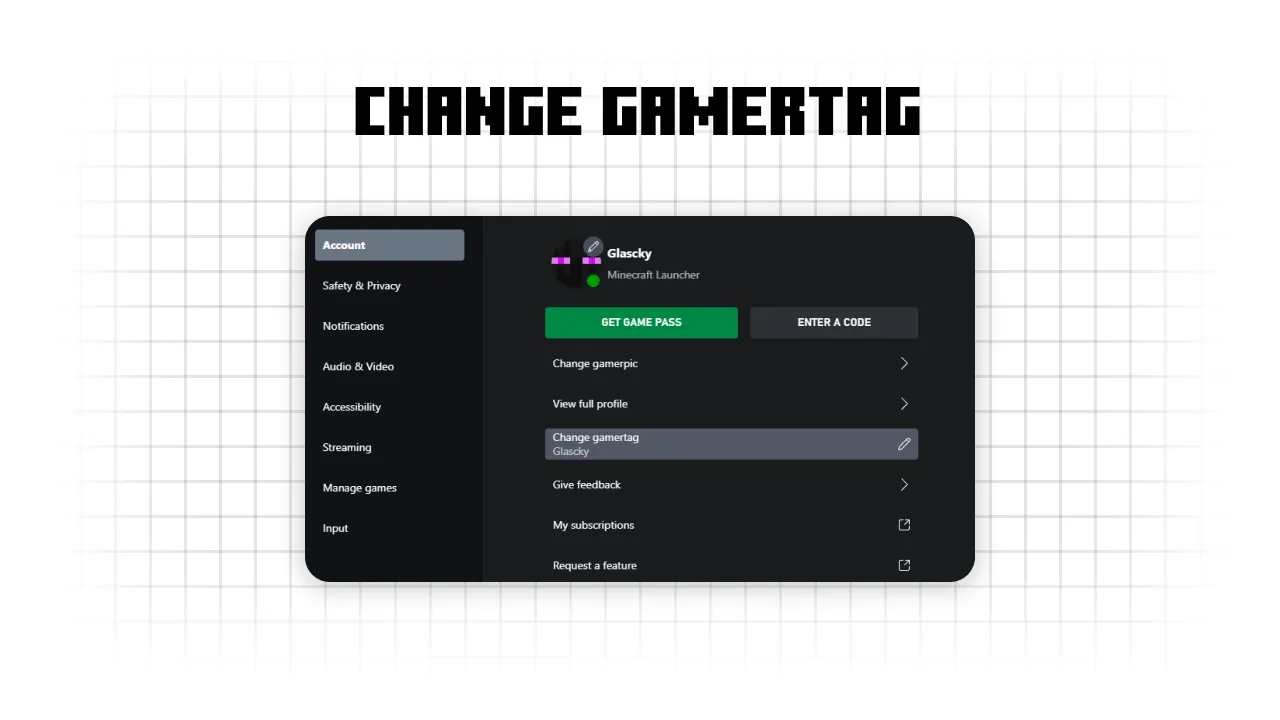
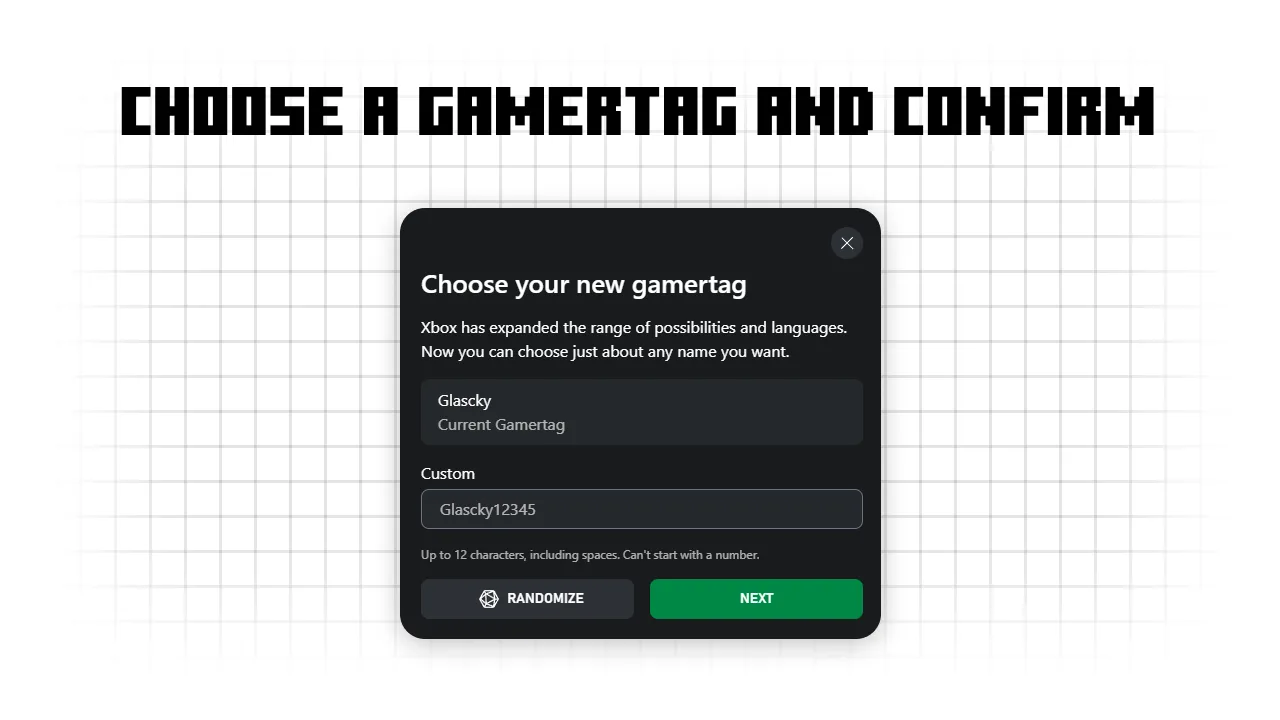
- Navigate to your profile settings to find the Change Gamertag section.
- Enter your new name. Xbox will let you know if someone else already has it.
- Follow the prompts to save the change.
Xbox usually lets you change your name for free the first time. If you have already changed it before, there may be a small fee to change it again.
Things to Remember Before You Change It
- 30-day rule: For Java, if you hate your new name, you are stuck with it for a full month.
- Old name protection: Once you change your Java name, your old name is held for 37 days. This gives you a small window to change it back before anyone else can grab it.
- Server bans: On some Java servers, bans are tied to your unique ID, not your name. Changing your name will not help you get unbanned.
Changing your name is a great way to restart your journey or match your name with your friend group. Just pick something you actually like so you don’t have to wait a month to fix it.