By MineUtils
Customization
How to Get Any Minecraft Cape in Java Edition (Vanilla)
Learn how to get any Minecraft cape in Java Edition without using mods. This easy vanilla trick lets you swap textures and use rare capes for free. Follow our simple guide to update your look.
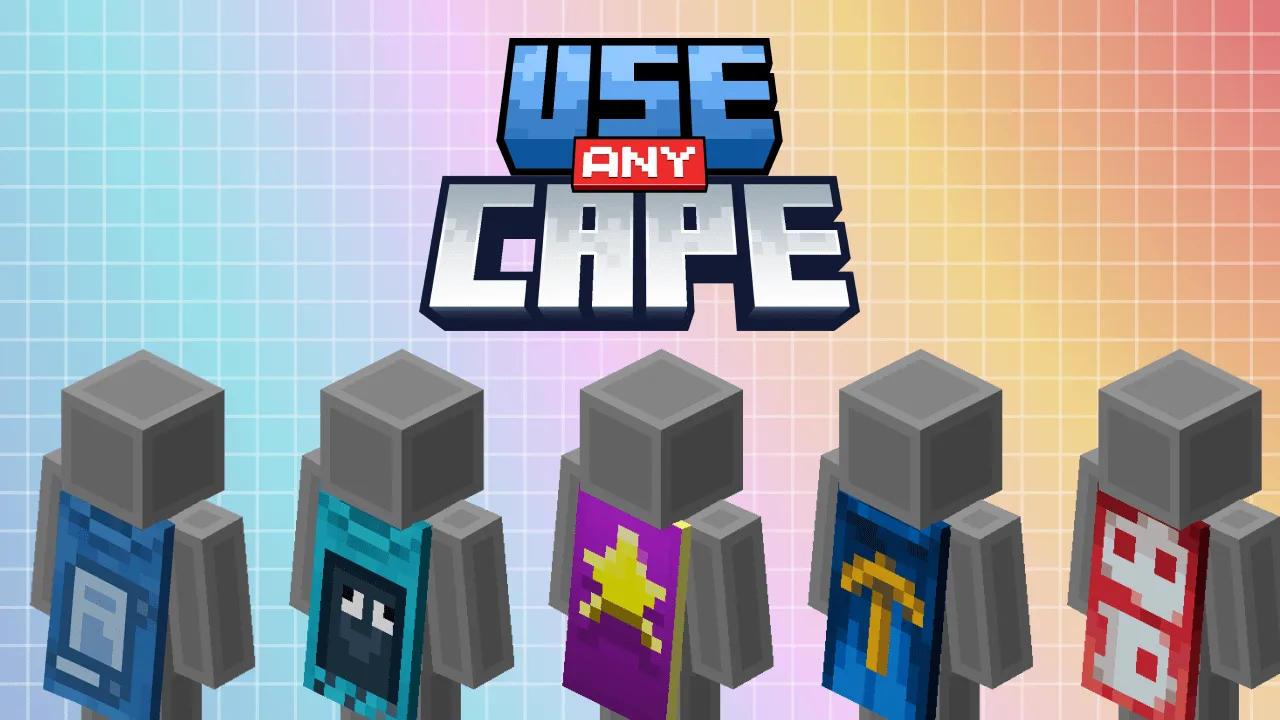
Getting a cool cape in Minecraft usually means spending money or waiting for a massive event. But you can swap cached files to preview a different cape while you play. You do not need to install third-party mods or launchers.
This is a local visual change: only you will see the cape. It is useful for screenshots or for seeing how a cape looks with your skin before you pursue an official one.
Step 1: Clear Your Cache
First, clean out old skin data so the game can generate fresh files.
- Close Minecraft and the launcher.
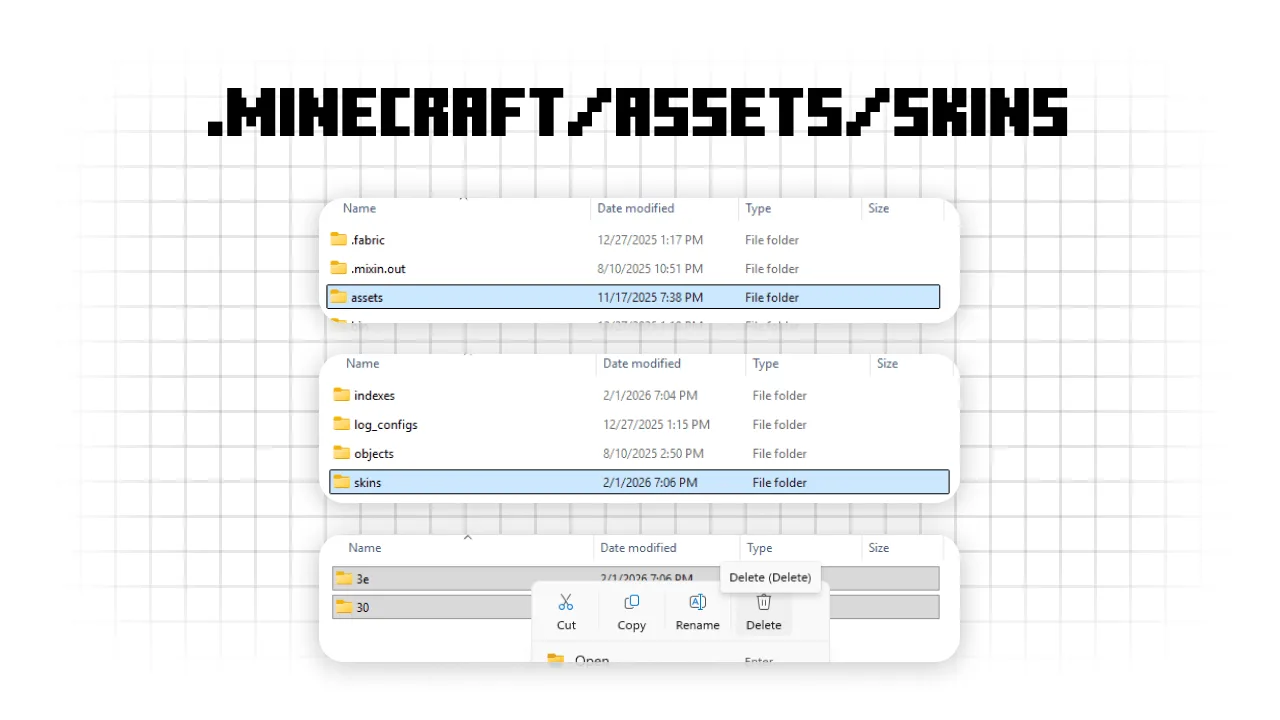
- Press Win + R, type
%appdata%, then go to.minecraft/assets/skins. - Delete everything inside that folder. This only removes temporary files that Minecraft uses to display skins and capes.
Step 2: Generate the Files
Now let the game create a new cached file for your current skin and cape.
- Open the Minecraft Launcher and go to the Skins tab.
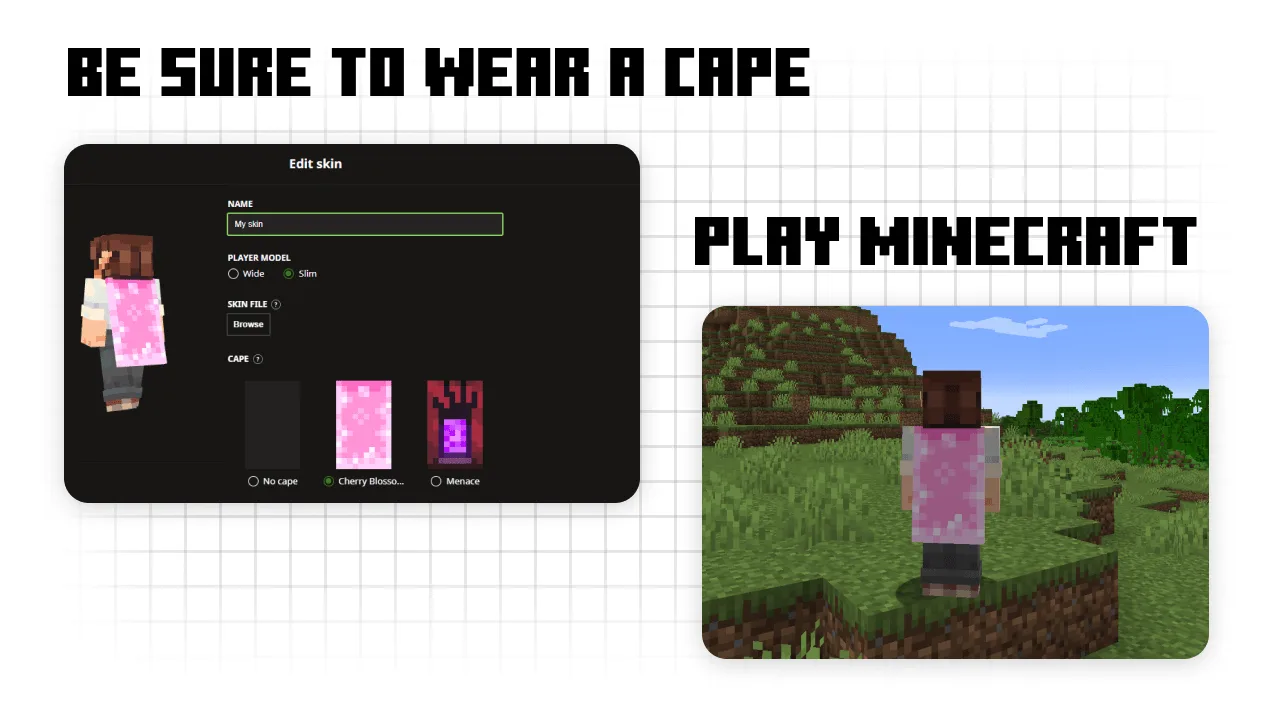
- Make sure you have your skin and any cape equipped. Even the basic Migrator or Vanilla cape works.
- Launch the game and join a single-player world. Once your character loads, quit the game.
Step 3: Find the Cape File
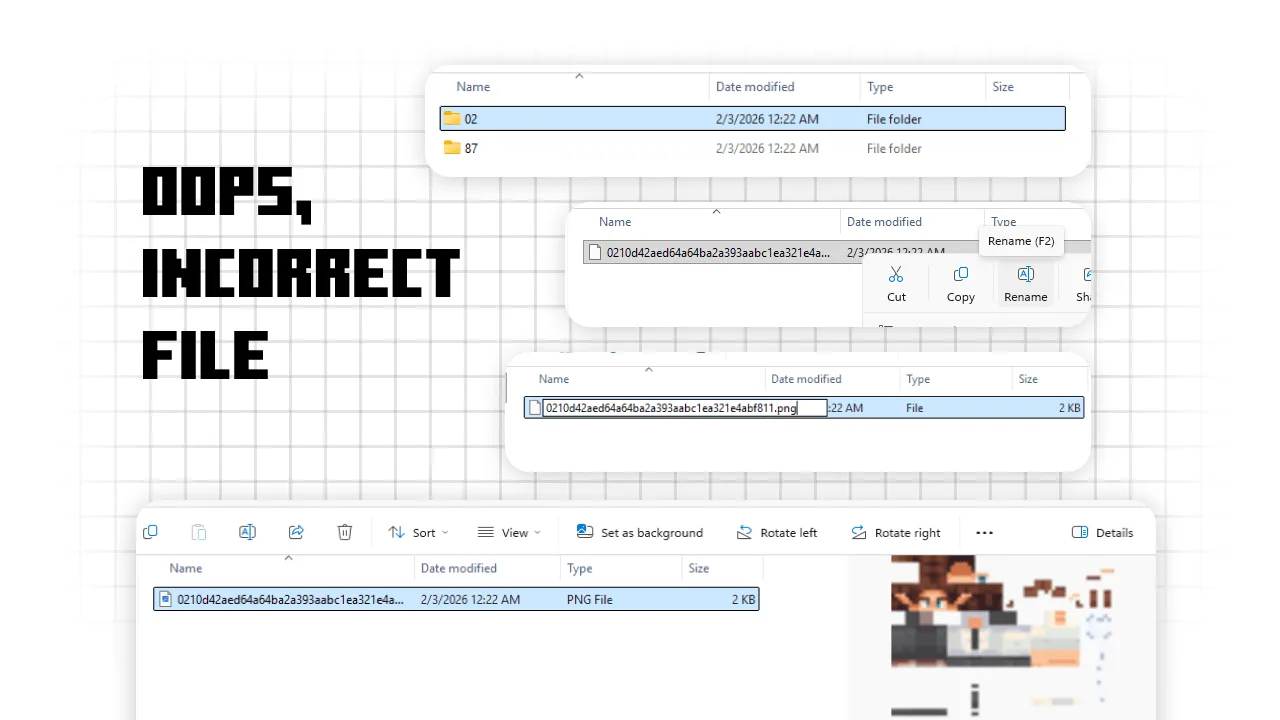
Go back to .minecraft/assets/skins. You will see folders with random two-letter names.
- Look through the folders for a file with a long name made of random letters and numbers.
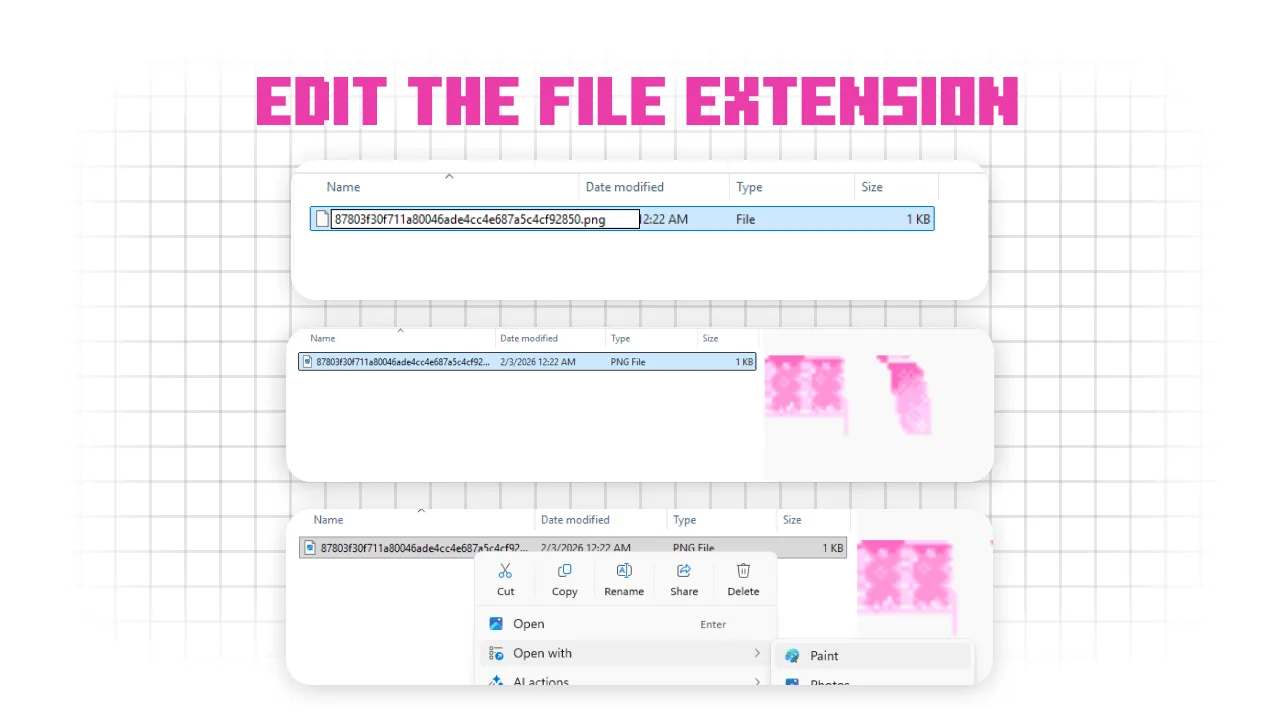
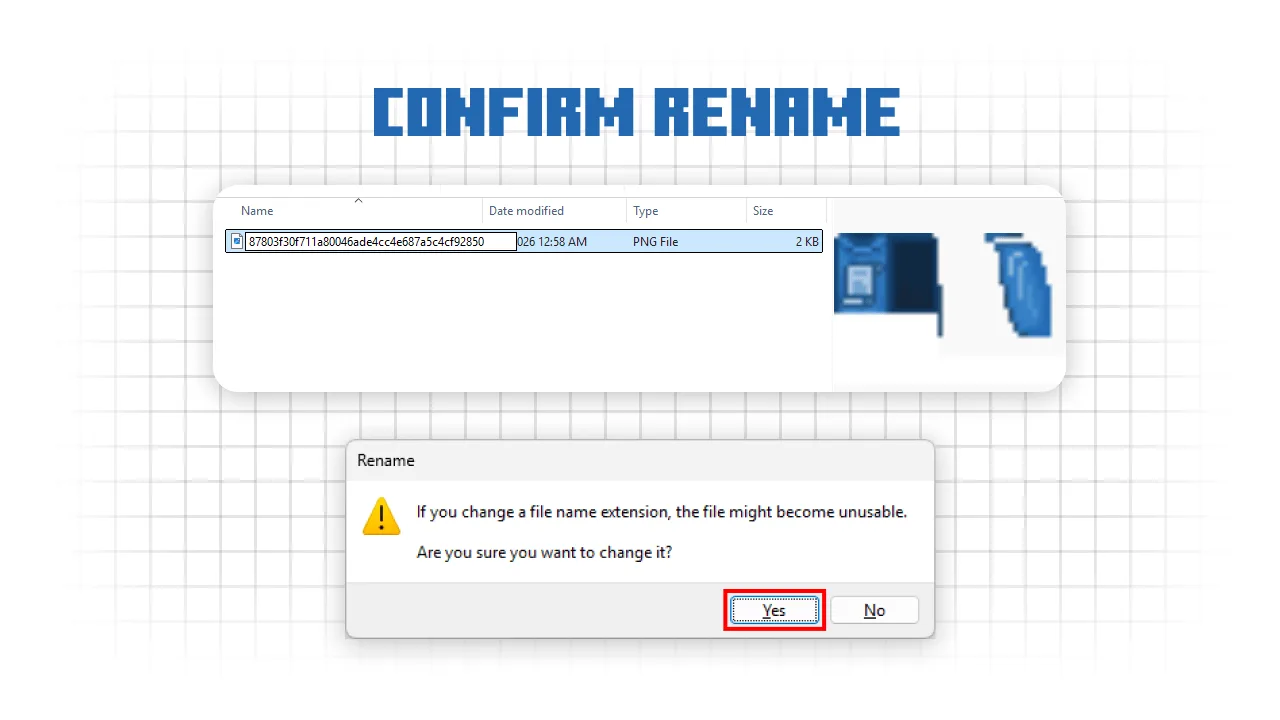
- To identify the cape, right-click the file, rename it and add .png to the end.
- Repeat until you find the image that looks like your current cape.
Step 4: Swap the Texture
Now replace that image with the cape you want to preview.
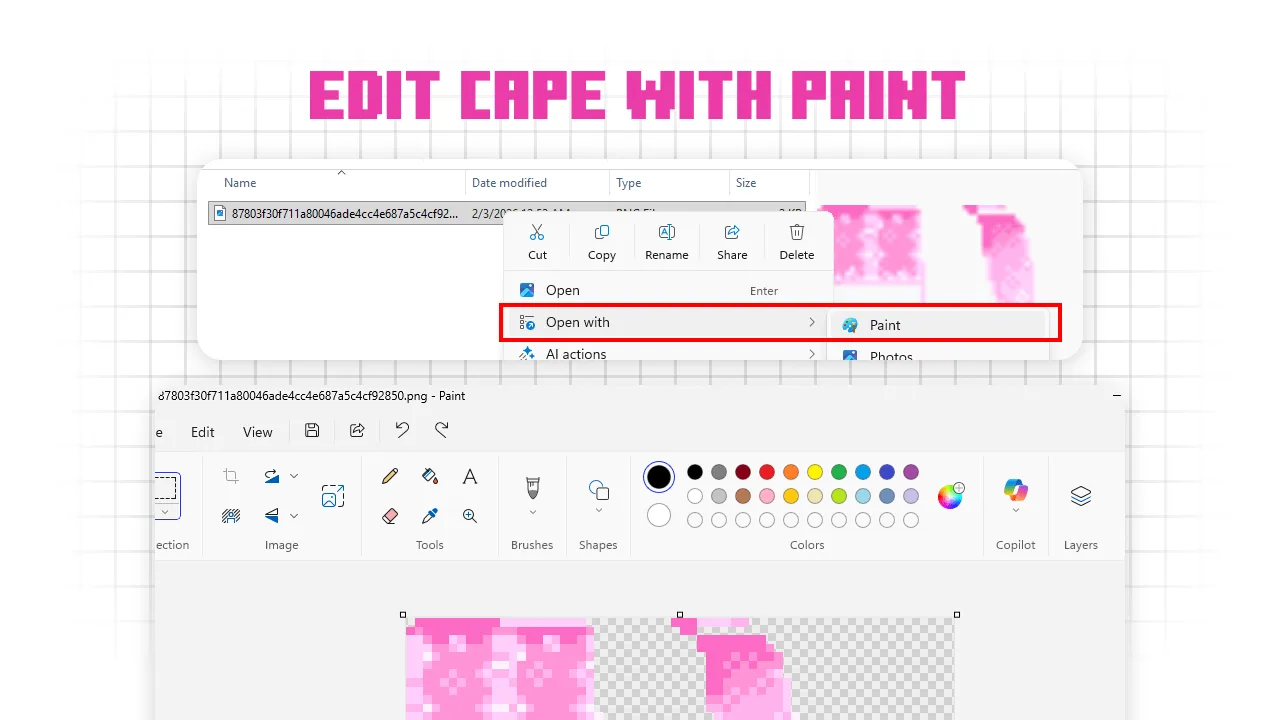
- Open the cape file in a program such as Paint.
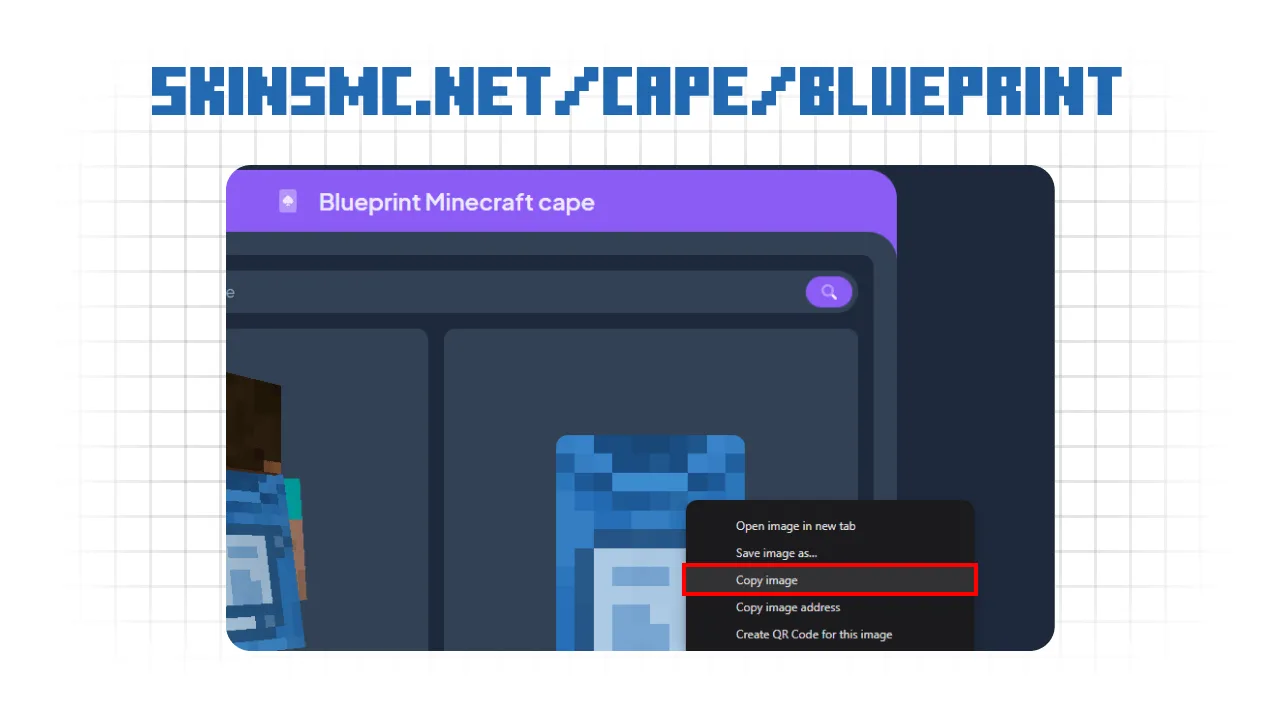
- Find a cape design you want to preview.
- Copy the cape image.
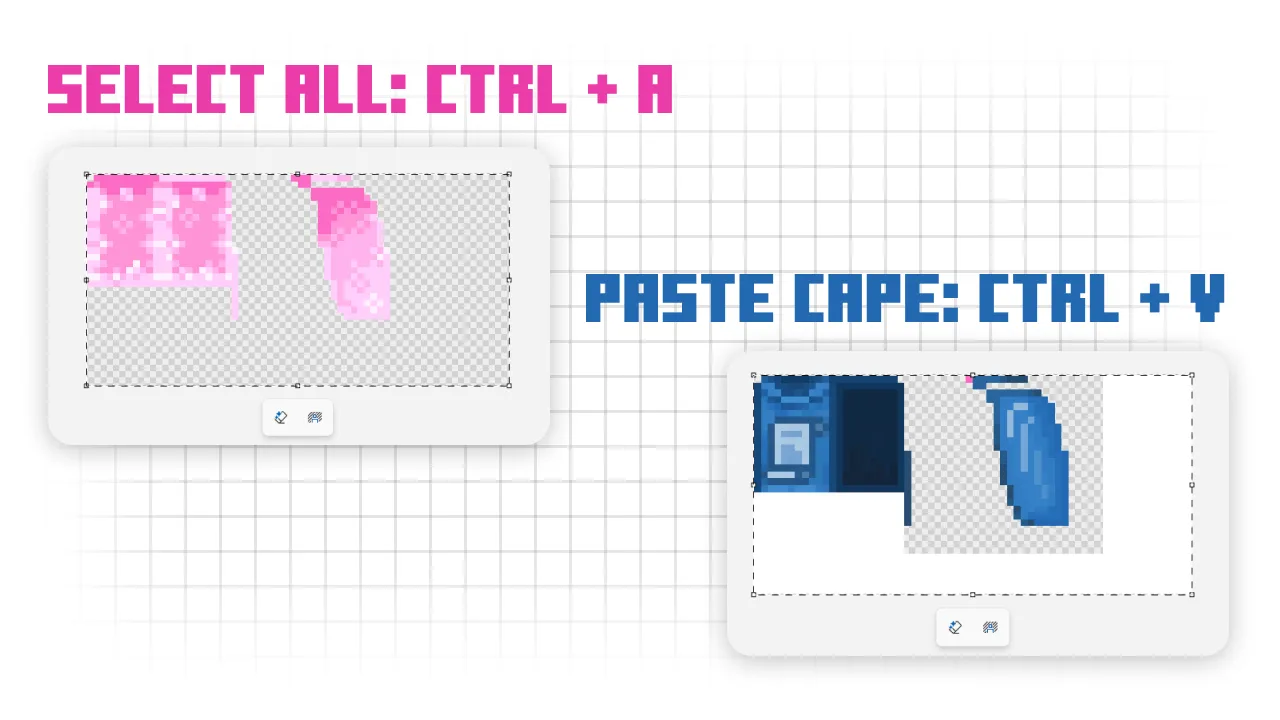
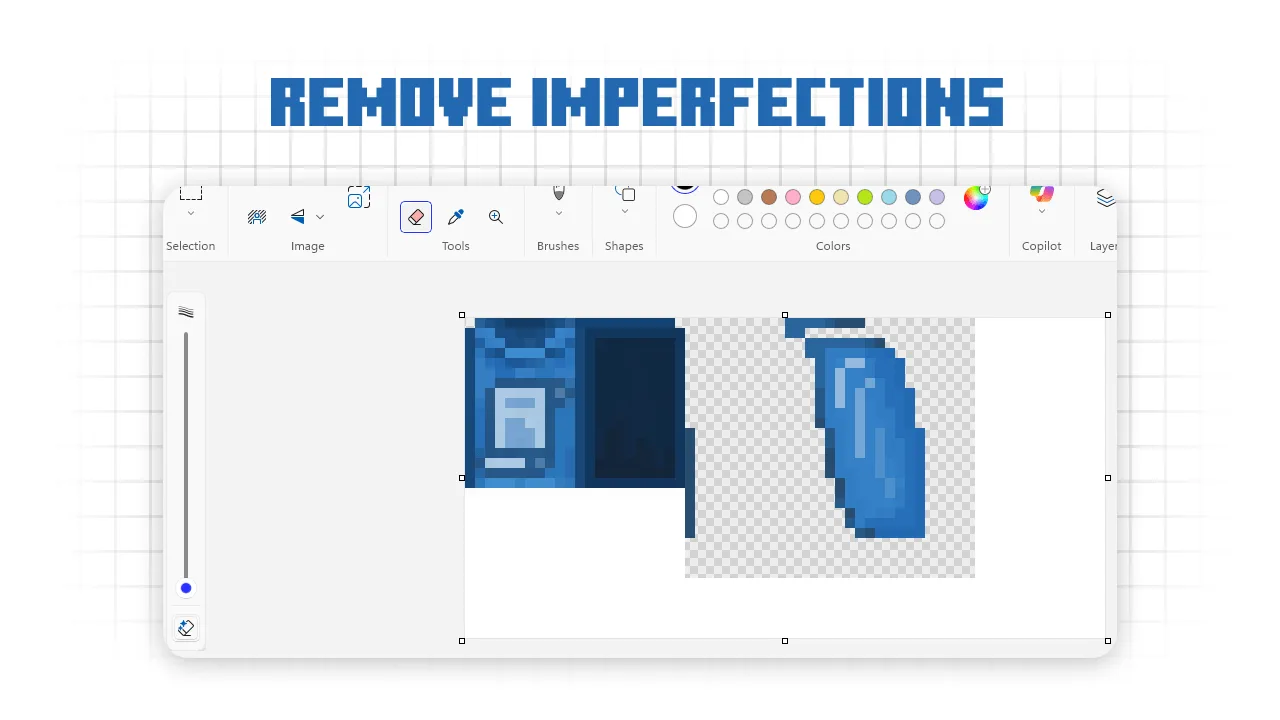
- In Paint, press Ctrl + A to select the canvas, then Ctrl + V to paste the new cape over the old one.
- Save the file and close Paint.
Step 5: Final Touches
Before you start the game, make the file look normal to Minecraft again.
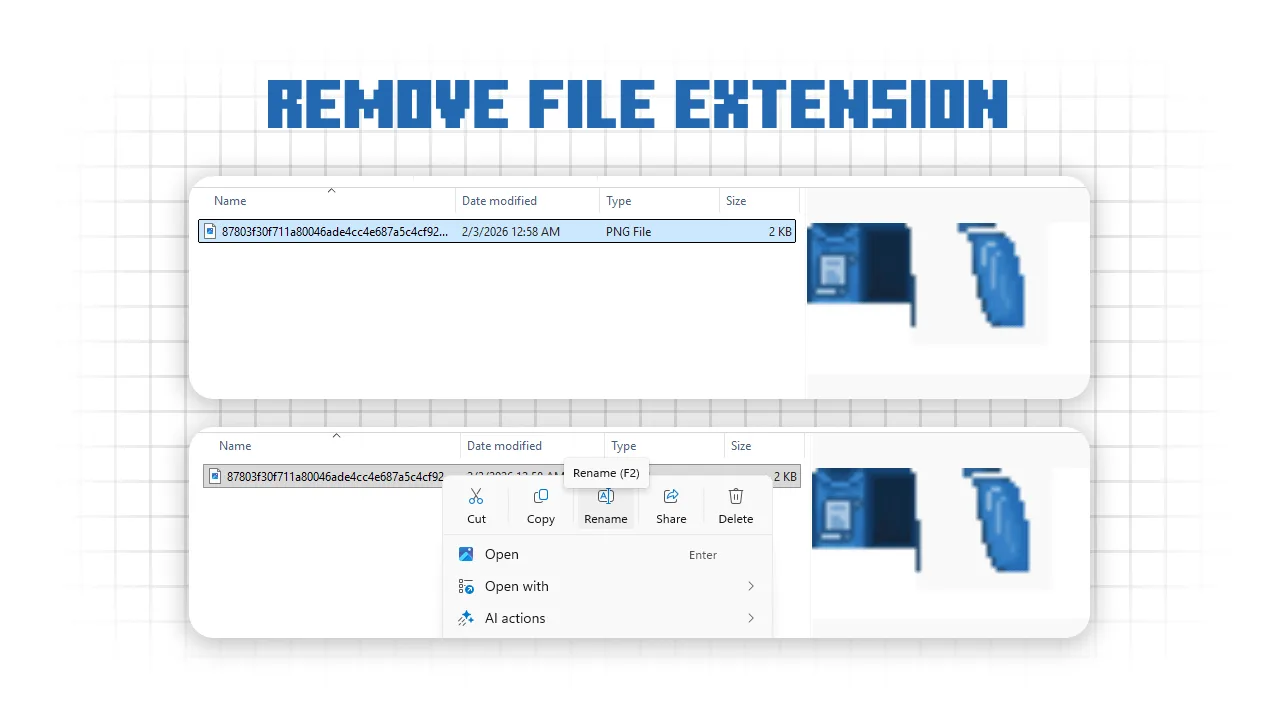
- Go back to the file you edited and rename it to remove the .png extension.
- It should return to being a file with only a long string of random characters.
- Open Minecraft and load into a world.
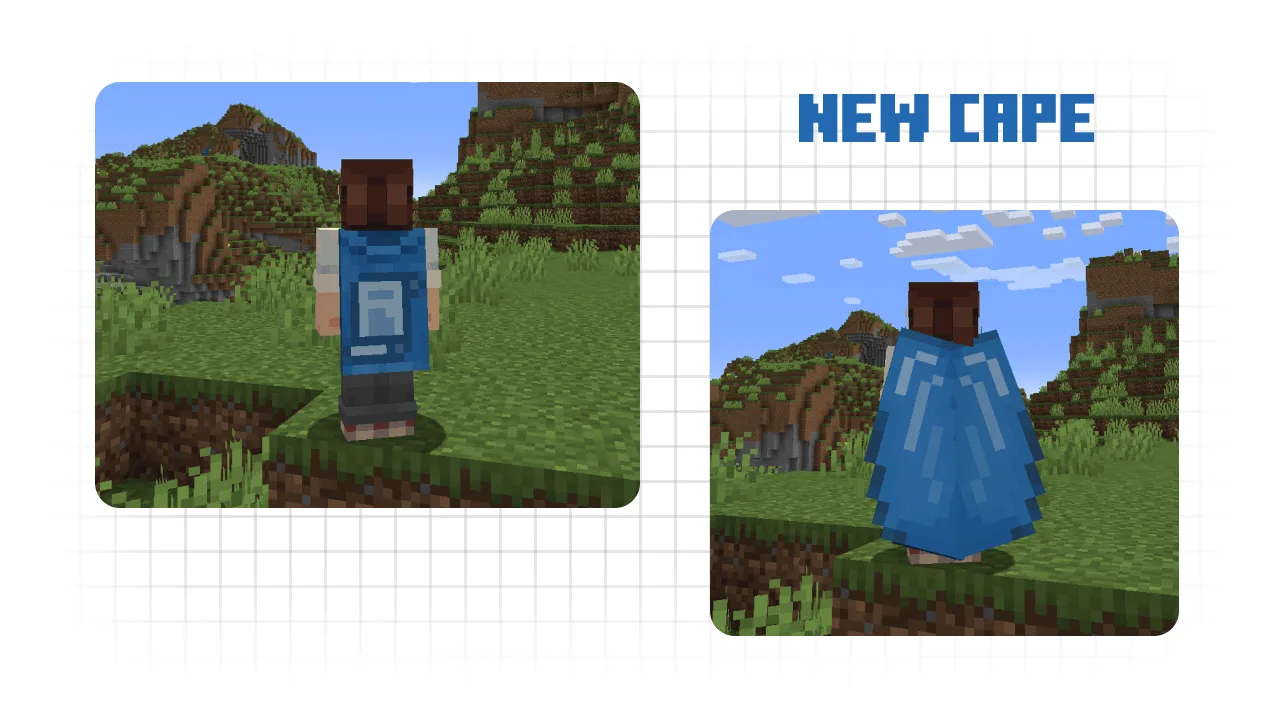
You should now see the cape you selected inside your vanilla game. Because the change is local, other players will still see the official cape attached to your account.